> ## Documentation Index
> Fetch the complete documentation index at: https://docs.velahq.xyz/docs/llms.txt
> Use this file to discover all available pages before exploring further.
# UI Walkthrough
> Step-by-step guide to setting up your first app, schemas, integrations, and notification rules in the Vela dashboard.
This guide walks you through the full Vela setup using the dashboard UI — from creating an app to receiving your first alert.
## Prerequisites
* You can sign in to the Vela dashboard.
* You know which team channel or email should receive alerts.
* You have a sample event payload ready (JSON).
```json theme={null}
{
"eventName": "build.failed",
"severity": "high",
"service": "api-gateway",
"environment": "production",
"errorCode": "DEPLOY_502",
"message": "Deployment failed after health checks",
"customerId": "cust_123"
}
```
***
## Step 1: Create an App
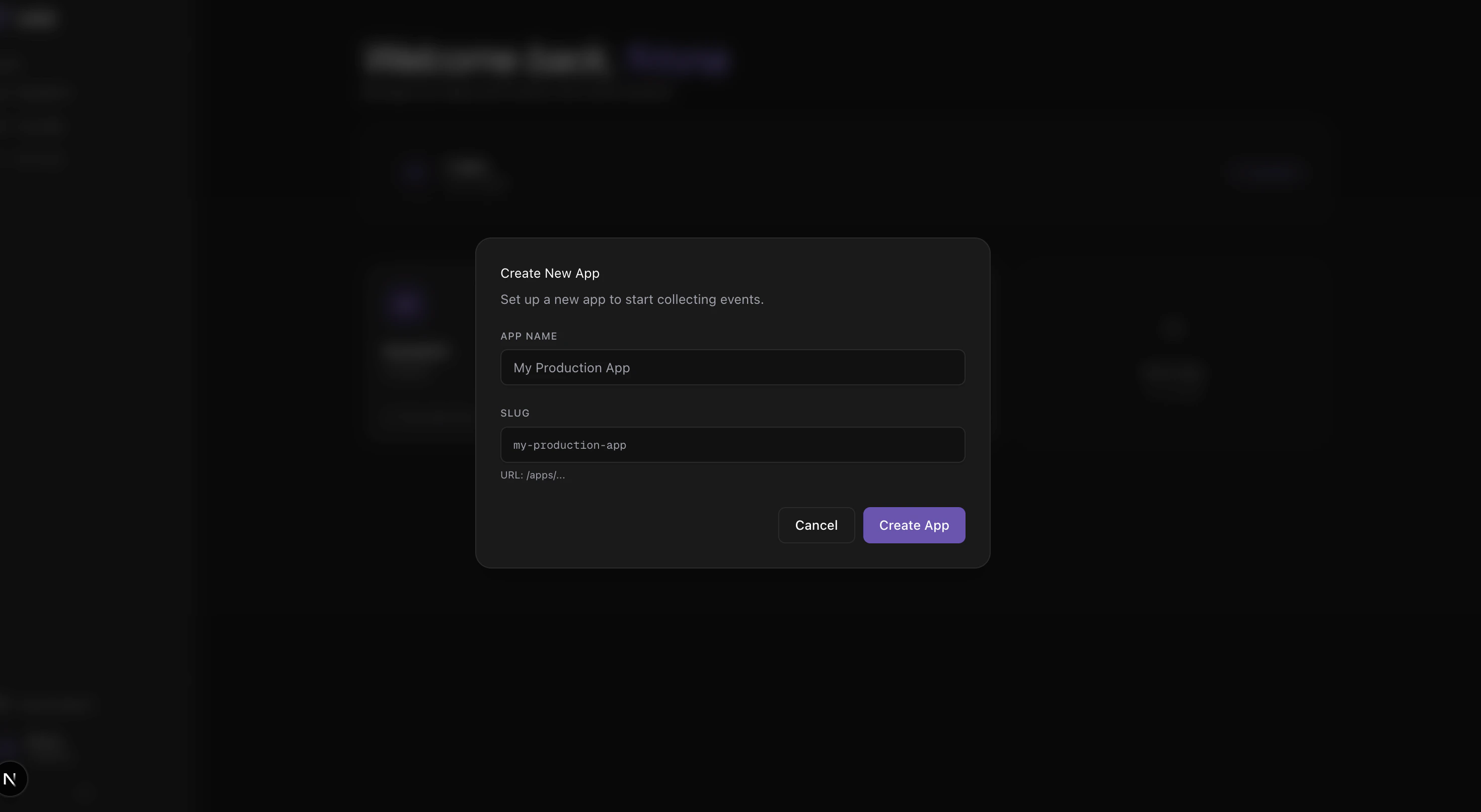
1. Open the Dashboard and click **Create New App**.
2. Enter an **App Name** and optionally customize the **Slug** (auto-generated from the name).
3. Click **Create App**.
 4. On the API key reveal screen, click **Copy key** and store it in a password manager or secret vault.
5. Click **Open app** to continue.
The full API key is only shown once at creation. If you lose it, go to **Settings** and regenerate.
***
## Step 2: Define a Schema
Navigate to **Schema Builder** in the sidebar.
1. Create or select an event name (e.g. `order.placed`).
2. Add fields using the visual editor — set name, type, and whether each field is required.
3. Optionally add a **Description** for the event.
4. Click **Update** to save.
4. On the API key reveal screen, click **Copy key** and store it in a password manager or secret vault.
5. Click **Open app** to continue.
The full API key is only shown once at creation. If you lose it, go to **Settings** and regenerate.
***
## Step 2: Define a Schema
Navigate to **Schema Builder** in the sidebar.
1. Create or select an event name (e.g. `order.placed`).
2. Add fields using the visual editor — set name, type, and whether each field is required.
3. Optionally add a **Description** for the event.
4. Click **Update** to save.
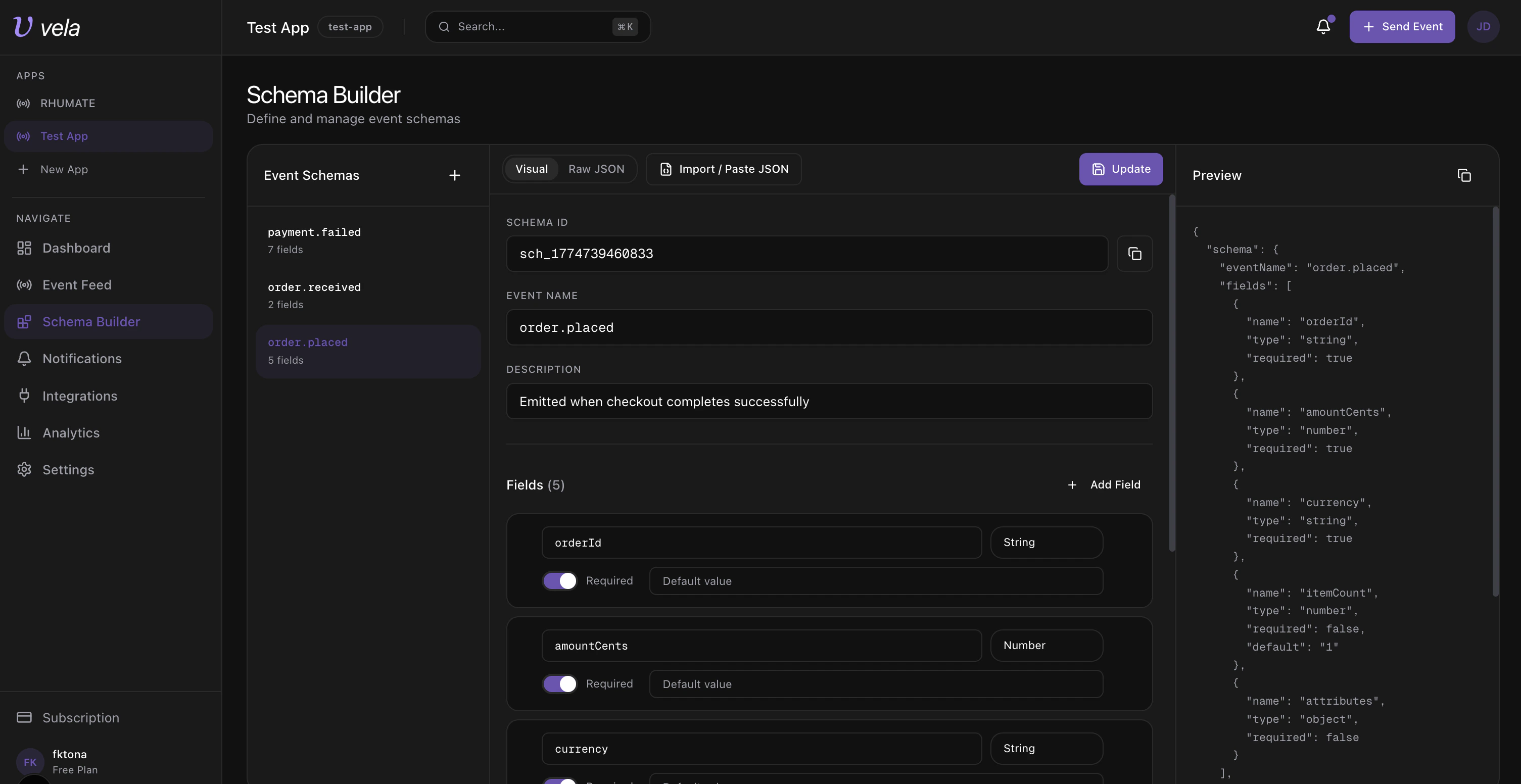 The right-hand **Preview** panel shows the generated JSON schema, so you can verify the shape before saving.
Define schemas before creating notification rules — this makes condition pickers easier and type-safe.
***
## Step 3: Add Integration Destinations
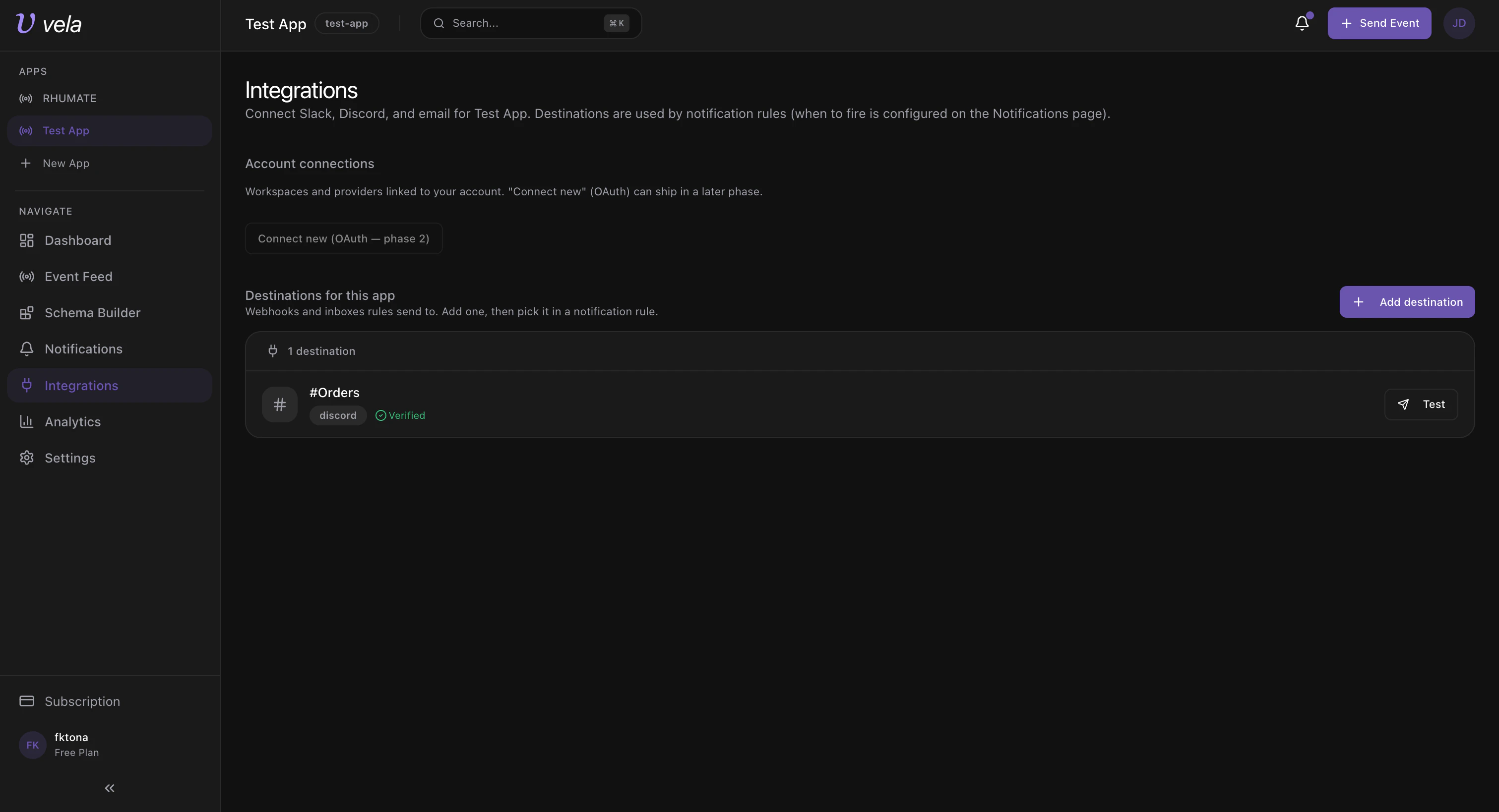
Navigate to **Integrations** in the sidebar.
Destinations are where alerts get delivered. You must add at least one before creating notification rules.
1. Click **Add destination**.
2. Choose a channel type (Slack, Discord, or Email).
3. Enter a label and the webhook URL or email address.
4. Click **Save destination**.
5. Click **Test** to verify delivery.
The right-hand **Preview** panel shows the generated JSON schema, so you can verify the shape before saving.
Define schemas before creating notification rules — this makes condition pickers easier and type-safe.
***
## Step 3: Add Integration Destinations
Navigate to **Integrations** in the sidebar.
Destinations are where alerts get delivered. You must add at least one before creating notification rules.
1. Click **Add destination**.
2. Choose a channel type (Slack, Discord, or Email).
3. Enter a label and the webhook URL or email address.
4. Click **Save destination**.
5. Click **Test** to verify delivery.
 1. **Channel type**: Slack (webhook)
2. **Label**: e.g. `#incident-alerts`
3. **Webhook URL**: paste your Slack incoming webhook URL
4. Save and send a test message
1. **Channel type**: Discord (webhook)
2. **Label**: e.g. `#ops-discord`
3. **Webhook URL**: paste your Discord webhook URL
4. Save and send a test message
1. **Channel type**: Email
2. **Label**: e.g. `On-call email`
3. **Email**: e.g. `oncall@company.com`
4. Save and send a test message
Each destination shows a **Verified** badge once the test succeeds.
***
## Step 4: Create Notification Rules
Navigate to **Notifications** in the sidebar.
Rules define *when* and *where* to send alerts based on incoming events.
1. Click **New Rule**.
2. Enter a **Rule Name** and select an **Event** from your saved schemas.
3. Under **Conditions**, click **Add** to define filters (e.g. `currency contains USD`, `amountCents less than 7000`).
4. Under **Actions**, click **Add** and pick a destination from your integrations.
5. Click **Save Rule**.
1. **Channel type**: Slack (webhook)
2. **Label**: e.g. `#incident-alerts`
3. **Webhook URL**: paste your Slack incoming webhook URL
4. Save and send a test message
1. **Channel type**: Discord (webhook)
2. **Label**: e.g. `#ops-discord`
3. **Webhook URL**: paste your Discord webhook URL
4. Save and send a test message
1. **Channel type**: Email
2. **Label**: e.g. `On-call email`
3. **Email**: e.g. `oncall@company.com`
4. Save and send a test message
Each destination shows a **Verified** badge once the test succeeds.
***
## Step 4: Create Notification Rules
Navigate to **Notifications** in the sidebar.
Rules define *when* and *where* to send alerts based on incoming events.
1. Click **New Rule**.
2. Enter a **Rule Name** and select an **Event** from your saved schemas.
3. Under **Conditions**, click **Add** to define filters (e.g. `currency contains USD`, `amountCents less than 7000`).
4. Under **Actions**, click **Add** and pick a destination from your integrations.
5. Click **Save Rule**.
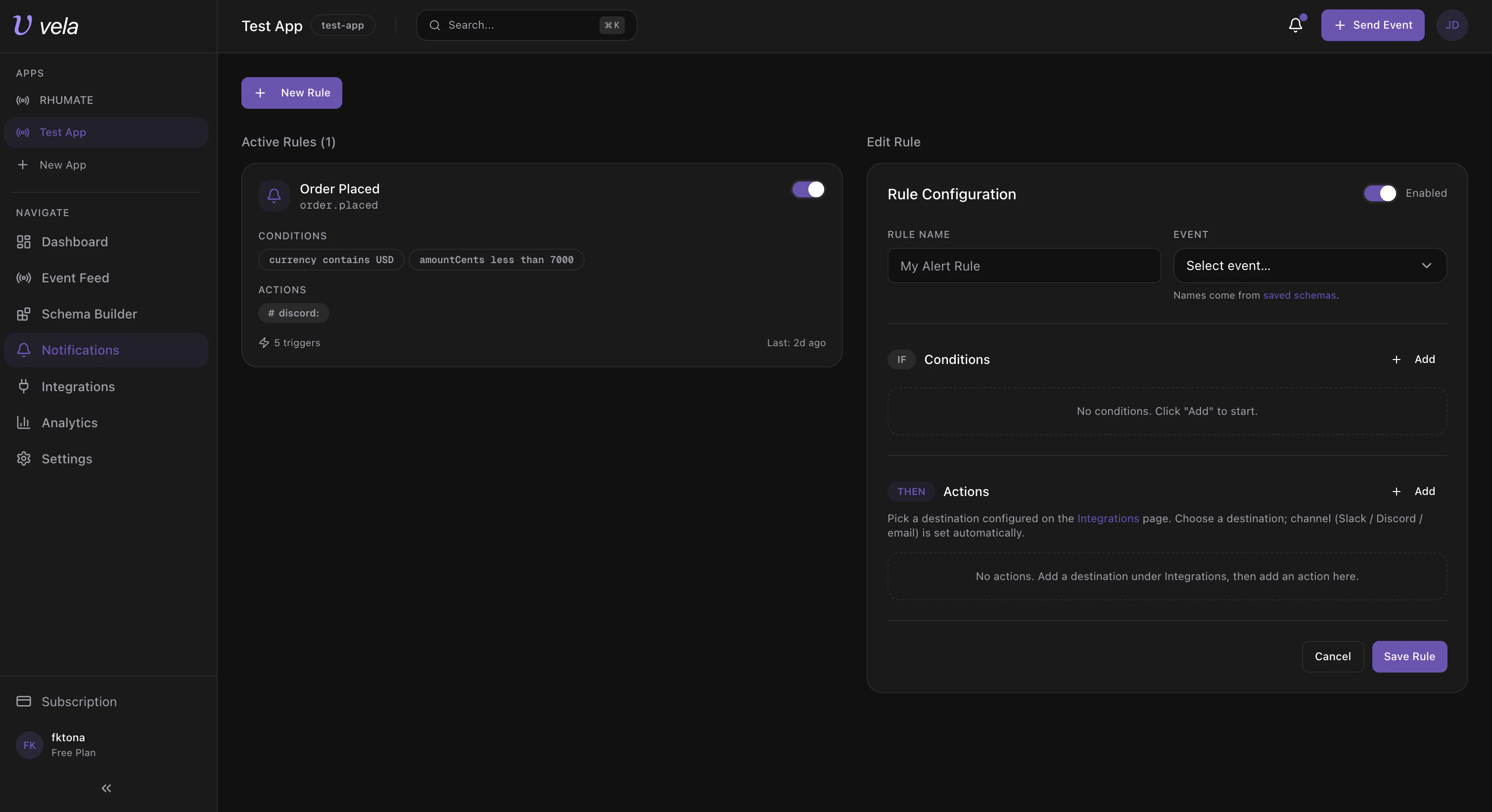 If you don't see a destination in the action dropdown, add it first in **Integrations**, then return here.
**Recommended starter rules:**
| Rule | Event | Condition | Action |
| ---------------------------- | ---------------- | ------------------------------- | ------------- |
| High severity build failures | `build.failed` | `severity equals high` | Slack + Email |
| Production auth failures | `auth.failed` | `environment equals production` | Discord |
| Payment failures | `payment.failed` | `region equals us-east-1` | Slack |
***
## Step 5: Send a Test Event
Use the API key from Step 1 to send your first event:
```bash theme={null}
curl -X POST https://api.vela.dev/v1/ingest \
-H "x-api-key: vela_live_..." \
-H "Content-Type: application/json" \
-d '{
"event": "build.failed",
"data": {
"severity": "high",
"service": "api-gateway",
"environment": "production",
"errorCode": "DEPLOY_502",
"message": "Deployment failed after health checks"
},
"level": "error",
"customer_id": "cust_123"
}'
```
Then verify:
Navigate to **Event Feed** in the sidebar. Your event should appear at the top.
Go to **Notifications** — the matching rule's trigger count should increase.
Confirm your Slack channel, Discord channel, or email inbox received the alert.
***
## Step 6: Manage Keys and Secrets
Navigate to **Settings** in the sidebar.
If you don't see a destination in the action dropdown, add it first in **Integrations**, then return here.
**Recommended starter rules:**
| Rule | Event | Condition | Action |
| ---------------------------- | ---------------- | ------------------------------- | ------------- |
| High severity build failures | `build.failed` | `severity equals high` | Slack + Email |
| Production auth failures | `auth.failed` | `environment equals production` | Discord |
| Payment failures | `payment.failed` | `region equals us-east-1` | Slack |
***
## Step 5: Send a Test Event
Use the API key from Step 1 to send your first event:
```bash theme={null}
curl -X POST https://api.vela.dev/v1/ingest \
-H "x-api-key: vela_live_..." \
-H "Content-Type: application/json" \
-d '{
"event": "build.failed",
"data": {
"severity": "high",
"service": "api-gateway",
"environment": "production",
"errorCode": "DEPLOY_502",
"message": "Deployment failed after health checks"
},
"level": "error",
"customer_id": "cust_123"
}'
```
Then verify:
Navigate to **Event Feed** in the sidebar. Your event should appear at the top.
Go to **Notifications** — the matching rule's trigger count should increase.
Confirm your Slack channel, Discord channel, or email inbox received the alert.
***
## Step 6: Manage Keys and Secrets
Navigate to **Settings** in the sidebar.
 ### Rotate API Key
Use this when the current API key may be compromised or as part of scheduled rotation.
1. Scroll to the **Danger Zone**.
2. Click **Regenerate API Key**.
3. Copy the newly revealed key immediately.
4. Update all server-side environments and redeploy.
The old key is revoked immediately — any services still using it will fail.
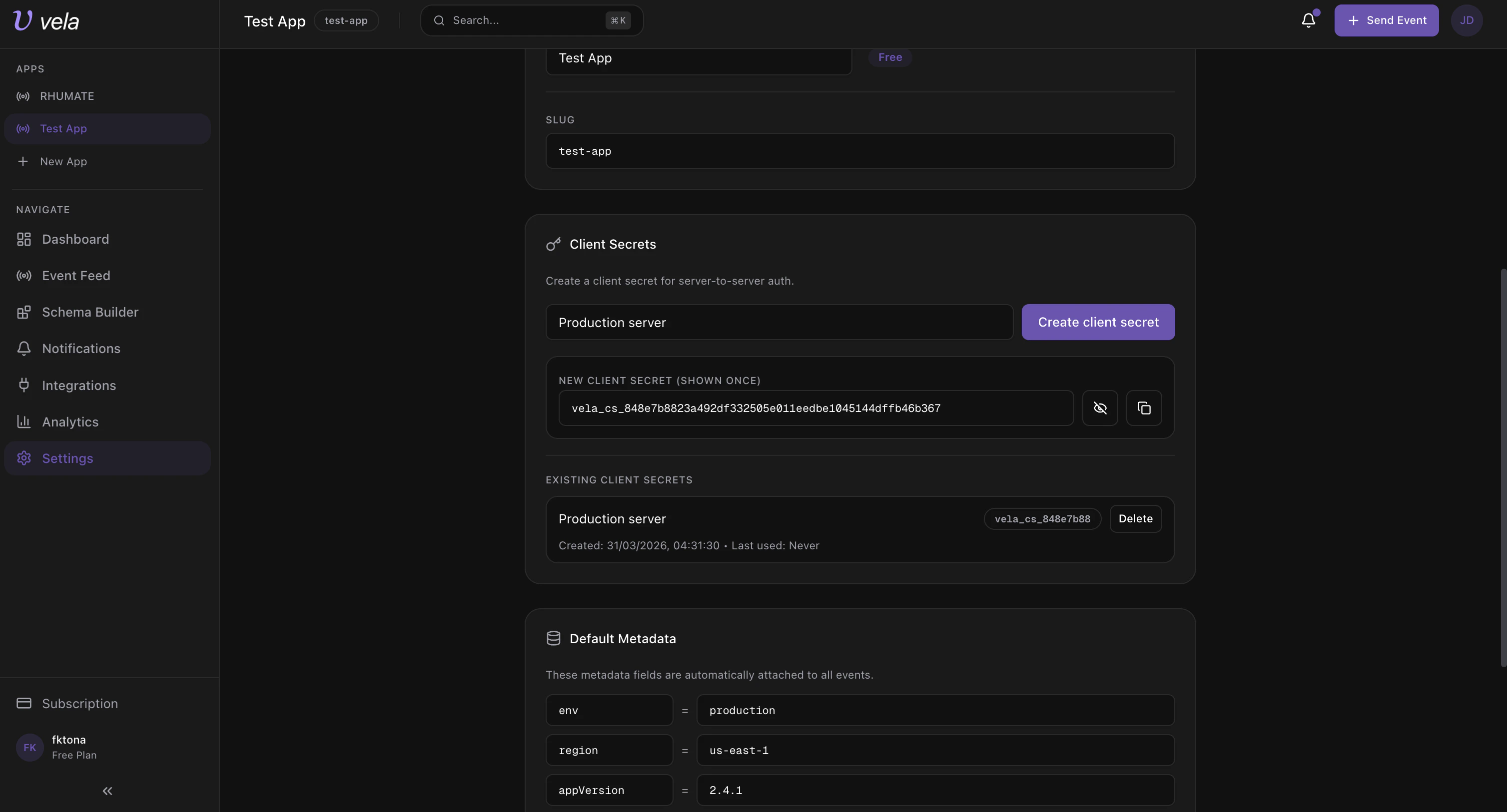
### Create Client Secrets
Client secrets are used for server-to-server management API access.
1. In the **Client Secrets** section, enter a label (e.g. `Production server`).
2. Click **Create client secret**.
3. Copy and store the revealed secret immediately — it is shown only once.
### Default Metadata
The **Default Metadata** section at the bottom lets you define key-value pairs (e.g. `env = production`, `region = us-east-1`) that are automatically attached to all events ingested by this app.
## Troubleshooting
| Problem | Solution |
| --------------------------------- | ----------------------------------------------------------------------------- |
| No destination in action dropdown | Add a destination in **Integrations** first, then return to **Notifications** |
| Rule saved but no alert sent | Check that event name and condition values exactly match the event payload |
| API key not visible in Settings | Full key is only shown at creation/rotation — use **Regenerate** if needed |
| Webhook test fails | Verify the URL format and provider permissions, then retry |
| Ingest fails after key rotation | Ensure all services were updated with the new key and redeployed |
### Rotate API Key
Use this when the current API key may be compromised or as part of scheduled rotation.
1. Scroll to the **Danger Zone**.
2. Click **Regenerate API Key**.
3. Copy the newly revealed key immediately.
4. Update all server-side environments and redeploy.
The old key is revoked immediately — any services still using it will fail.
### Create Client Secrets
Client secrets are used for server-to-server management API access.
1. In the **Client Secrets** section, enter a label (e.g. `Production server`).
2. Click **Create client secret**.
3. Copy and store the revealed secret immediately — it is shown only once.
### Default Metadata
The **Default Metadata** section at the bottom lets you define key-value pairs (e.g. `env = production`, `region = us-east-1`) that are automatically attached to all events ingested by this app.
## Troubleshooting
| Problem | Solution |
| --------------------------------- | ----------------------------------------------------------------------------- |
| No destination in action dropdown | Add a destination in **Integrations** first, then return to **Notifications** |
| Rule saved but no alert sent | Check that event name and condition values exactly match the event payload |
| API key not visible in Settings | Full key is only shown at creation/rotation — use **Regenerate** if needed |
| Webhook test fails | Verify the URL format and provider permissions, then retry |
| Ingest fails after key rotation | Ensure all services were updated with the new key and redeployed |